
South African service businesses are expert at the work, the plumbing, the wiring, the installation. The part that bleeds them dry is everything that happens after the job: writing up the invoice, printing it out, emailing it three days later, following up two weeks after that, and eventually writing off the debt entirely because the paper trail got lost.
The average invoice-to-payment cycle for South African field service businesses runs 45-60 days. For a business billing R80,000 per month, that's R120,000-R160,000 in outstanding cash at any given moment. During load shedding surges, material price spikes, and seasonal downturns, that working capital gap is the difference between surviving and shutting down.
The solution isn't credit control software or aggressive debt collection. It's invoicing at the point of service, before the job card even leaves the customer's driveway.
Step-by-Step: Creating a Job Card on Your Phone That Auto-Generates an Invoice
With Omni, the job card and the invoice are two sides of the same document. There is no separate invoicing step, completing the job card creates the invoice automatically.
- Open the job on your phone, the Omni field agent app shows your scheduled jobs for the day. Tap the job to open it.
- Start the job, tap 'Start Job' when you arrive. This GPS-timestamps your arrival and begins the billable time clock.
- Log materials used, as you work, add materials from your pre-loaded catalogue. Quantities and pricing update the invoice automatically.
- Complete the checklist, your digital job card has trade-specific fields pre-configured: fault description, work done, parts replaced, compliance notes.
- Take before-and-after photos, required fields that attach to both the job record and the invoice PDF.
- Get the customer's signature, they sign on your screen. This confirms acceptance of the work and creates a legally sound record.
- Mark the job complete, Omni generates the invoice PDF automatically and sends it to the customer's email address immediately. Done.

Trade-Specific Invoice Templates: What to Include
A professional invoice for a South African trade business must include specific fields to be legally valid and practically useful for your client's bookkeeping:
For Plumbers:
- PIRB registration number (if applicable)
- Description of fault and repair performed
- Parts used (brand, size, specification)
- Time on site (start and end time)
- VAT registration number (if VAT-registered)
For Electricians:
- Registered electrical contractor licence number
- SANS compliance notes
- Circuit reference numbers
- COC certificate number (if applicable)
For Pest Control Operators:
- NRCS registration number
- Chemical product name, registration number, and batch
- Application method and concentration
- Technician certification reference
- Reapplication date (if applicable)
For HVAC Technicians:
- Equipment make, model, and serial number
- Refrigerant type and quantity added/removed
- Warranty status and service interval
Omni invoice templates are pre-configured by trade, so these fields appear automatically for the right job type, technicians don't have to remember what to include.
Sending Quotes on WhatsApp: Getting Approval Before You Start
For larger jobs or first-time clients, getting written approval before starting work protects you from scope disputes. Omni generates professional quote PDFs in the same workflow as invoices, you can send a quote via WhatsApp directly from the app with a single tap.
The client receives a professional PDF with your logo, itemised line items, total amount, validity period, and an accept/decline button. When they accept, the quote converts to a job automatically, no double entry, no data re-keying.
Tracking Unpaid Invoices and Automated Follow-Ups
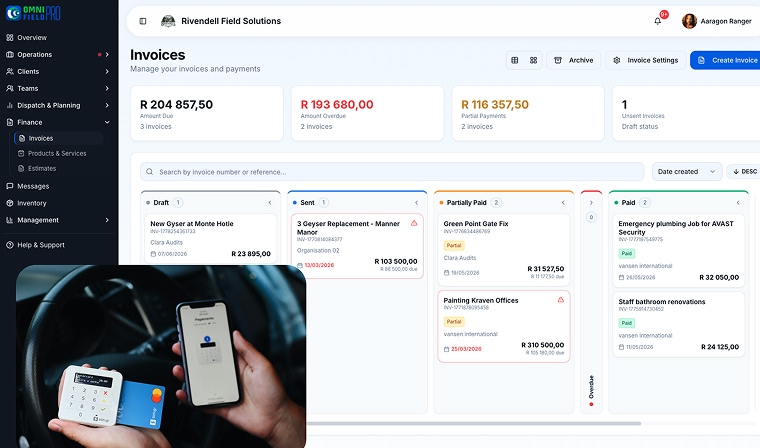
The Omni accounts dashboard shows every invoice in three columns: paid, pending, and overdue. Overdue invoices are highlighted and aged (7 days, 14 days, 30 days, 60 days+). For each overdue invoice, you can trigger an automated payment reminder with one tap, or configure automated reminders to fire on your schedule without any manual action.
Payment reminders are sent via WhatsApp (if the client has WhatsApp) and email simultaneously, with a direct Paystack payment link included. Clients can pay immediately from the message, no login required, no account setup needed.
Accepting Paystack Payments from Job Invoices
Every invoice generated in Omni includes a Paystack payment link. Clients can pay by card, EFT, or SnapScan directly from the invoice PDF or WhatsApp message, from any device, without needing to log in or create an account.
Payments are reflected in Omni automatically when confirmed by Paystack. No manual reconciliation. No chasing the bank statement to see what came in.
Invoice Smarter, Get Paid Faster
Same-day invoicing, automated reminders, and Paystack integration are included in every Omni plan, from the free solo plan to enterprise. Start your 14-day free trial and send your first invoice from your phone today.